
- How to Install SEO PowerSuite
- How to Register SEO PowerSuite
 Rank Tracker User Manual
- Getting Started
- Domain Analysis
- Keyword Research
- Competitor Research
- SERP Analysis
- Updating Keyword Data
- Checking Rankings
- Keyword Map
- Checking Traffic
- Scheduling Checks
- Setting up Alerts
- Managing Reports
- Exporting Data
- Storing Projects Online
- Search Safety Settings
- Reporting Errors
- Using Tags
- Miscellaneous Settings
 WebSite Auditor User Manual
- Application Layout
- Project Setup
- Site Optimization
- Page Optimization
- Page Speed Analysis (Core Web Vitals)
- Sitemap XML
- Robots.txt Settings
- Custom Search
- Scheduling Checks
- Setting up Alerts
- Managing Reports
- Exporting Data
- Using Tags
- Crawling Slower Sites
- Reporting Errors
- Storing Projects Online
- Miscellaneous Settings
 SEO SpyGlass User Manual
- Application Layout
- Project Setup
- Backlink Profile Details
- Verifying Backlink Presence
- Checking Backlink Characteristics
- Analyzing Backlink Quality
- Analyzing Penalty Risk
- Disavow Backlinks
- Historical Data
- Domain Comparison & Competitive Analysis
- Bulk Analysis
- Scheduling Checks
- Setting up Alerts
- Managing Reports
- Exporting Data
- Using Tags
- Storing Projects Online
- Miscellaneous Settings
- Managing Events
- Reporting Errors
 LinkAssistant User Manual
- Application Layout
- Creating a Project and Searching for Prospects
- Managing Search Results
- Analyzing Prospects
- Reaching out to Prospects
- Prospect/Backlink Management
- Link Exchange
- Scheduling Checks
- Setting up Alerts
- Managing Reports
- Exporting Data
- Using Tags
- Storing Projects Online
- Miscellaneous Settings
- Managing Events
- Reporting Errors
- Knowledgebase & Troubleshooting
- Installation & Compatibility
- Common Features & Settings
- What is Safe Query Mode and how does it work?
- Why do I see CAPTCHAs while running checks in SEO PowerSuite?
- Why SEO PowerSuite apps are running out of memory?
- Will SEO PowerSuite tools work without Search Algo Updates?
- Can I use anti-CAPTCHA keys in SEO PowerSuite?
- How do I customize my workspaces in SEO PowerSuite apps?
- How do I change the interface language?
- How do I stop getting E-mail Alerts?
- How do I re-run failed tasks in SEO PowerSuite?
- What is InLink Rank and how's it updated?
- How do I check Page Authority and Domain Authority using a MOZ API key?
- How do I request a new Search Engine?
- Rank Tracker
- How do I avoid temp blocks and ensure smooth rank tracking?
- Why rankings are different in Rank Tracker and in a browser?
- What is Visibility in Rank Tracker and how it's being calculated?
- How do I export my rank history from Rank Tracker to Excel?
- How do I import rank history from other tools to Rank Tracker?
- I can't get Number of Searches in Rank Tracker
- Why number of Sessions is lower than Expected Visits?
- Why is my country not on the list of supported regions for Rankings Keywords/Keyword Gap and Competitor Research?
- WebSite Auditor
- What do I do if WebSite Auditor freezes/runs out of memory?
- Why some of my pages are not being found by WebSite Auditor?
- How do I change my target keywords for an analyzed page in Page Audit?
- The list of competitors in Page Audit looks wrong/irrelevant
- How do I import a CSV to Keyword Map?
- Using Custom Search: CSS Selectors
- Should I care about HTML/CSS errors?
- SEO SpyGlass
- LinkAssistant
- Adding custom Meta Description for your Link Directory
- Are Nofollow links useful?
- What is Backlink Value and how do I check it?
- How do I import Link Prospects from SEO SpyGlass to LinkAssistant?
- LinkAssistant doesn't find backlinks to my site/doesn't let me add Link Prospects manually
- What's the difference between (Backlink) and (Prospect) factors in LinkAssistant?
- How come LinkAssistant cannot find any Prospects?
- Why is the Backlink Page column empty?
- SEO Reporting
- FAQ & Troubleshooting
- How do I get an invoice for my order?
- How do I change my CC for the subscription?
- Why do I see VAT/Tax on the Checkout?
- I've lost my license keys, what do I do?
- Can I get Customer Support?
- Can I get remote assistance?
- Software auto-update won't complete (or gets stuck in a loop)
- Java Virtual Machine Launcher: Could not create Java Virtual Machine
- I haven't received any order confirmation/license details
- How do I connect my email account to SEO PowerSuite?
- I don't get any data from my Google accounts (Search Console, Analytics, Google Ads)
- How do I report an issue in SEO PowerSuite?
- How do I get a PageSpeed Insights key?
- How to Install SEO PowerSuite
- How to Register SEO PowerSuite
- Rank Tracker User Manual
- Getting Started
- Domain Analysis
- Keyword Research
- Competitor Research
- SERP Analysis
- Updating Keyword Data
- Checking Rankings
- Keyword Map
- Checking Traffic
- Scheduling Checks
- Setting up Alerts
- Managing Reports
- Exporting Data
- Storing Projects Online
- Search Safety Settings
- Reporting Errors
- Using Tags
- Miscellaneous Settings
- WebSite Auditor User Manual
- Application Layout
- Project Setup
- Site Optimization
- Page Optimization
- Page Speed Analysis (Core Web Vitals)
- Sitemap XML
- Robots.txt Settings
- Custom Search
- Scheduling Checks
- Setting up Alerts
- Managing Reports
- Exporting Data
- Using Tags
- Crawling Slower Sites
- Reporting Errors
- Storing Projects Online
- Miscellaneous Settings
- SEO SpyGlass User Manual
- Application Layout
- Project Setup
- Backlink Profile Details
- Verifying Backlink Presence
- Checking Backlink Characteristics
- Analyzing Backlink Quality
- Analyzing Penalty Risk
- Disavow Backlinks
- Historical Data
- Domain Comparison & Competitive Analysis
- Bulk Analysis
- Scheduling Checks
- Setting up Alerts
- Managing Reports
- Exporting Data
- Using Tags
- Storing Projects Online
- Miscellaneous Settings
- Managing Events
- Reporting Errors
- LinkAssistant User Manual
- Application Layout
- Creating a Project and Searching for Prospects
- Managing Search Results
- Analyzing Prospects
- Reaching out to Prospects
- Prospect/Backlink Management
- Link Exchange
- Scheduling Checks
- Setting up Alerts
- Managing Reports
- Exporting Data
- Using Tags
- Storing Projects Online
- Miscellaneous Settings
- Managing Events
- Reporting Errors
- Knowledgebase & Troubleshooting
- Installation & Compatibility
- Common Features & Settings
- What is Safe Query Mode and how does it work?
- Why do I see CAPTCHAs while running checks in SEO PowerSuite?
- Why SEO PowerSuite apps are running out of memory?
- Will SEO PowerSuite tools work without Search Algo Updates?
- Can I use anti-CAPTCHA keys in SEO PowerSuite?
- How do I customize my workspaces in SEO PowerSuite apps?
- How do I change the interface language?
- How do I stop getting E-mail Alerts?
- How do I re-run failed tasks in SEO PowerSuite?
- What is InLink Rank and how's it updated?
- How do I check Page Authority and Domain Authority using a MOZ API key?
- How do I request a new Search Engine?
- Rank Tracker
- How do I avoid temp blocks and ensure smooth rank tracking?
- Why rankings are different in Rank Tracker and in a browser?
- What is Visibility in Rank Tracker and how it's being calculated?
- How do I export my rank history from Rank Tracker to Excel?
- How do I import rank history from other tools to Rank Tracker?
- I can't get Number of Searches in Rank Tracker
- Why number of Sessions is lower than Expected Visits?
- Why is my country not on the list of supported regions for Rankings Keywords/Keyword Gap and Competitor Research?
- WebSite Auditor
- What do I do if WebSite Auditor freezes/runs out of memory?
- Why some of my pages are not being found by WebSite Auditor?
- How do I change my target keywords for an analyzed page in Page Audit?
- The list of competitors in Page Audit looks wrong/irrelevant
- How do I import a CSV to Keyword Map?
- Using Custom Search: CSS Selectors
- Should I care about HTML/CSS errors?
- SEO SpyGlass
- LinkAssistant
- Adding custom Meta Description for your Link Directory
- Are Nofollow links useful?
- What is Backlink Value and how do I check it?
- How do I import Link Prospects from SEO SpyGlass to LinkAssistant?
- LinkAssistant doesn't find backlinks to my site/doesn't let me add Link Prospects manually
- What's the difference between (Backlink) and (Prospect) factors in LinkAssistant?
- How come LinkAssistant cannot find any Prospects?
- Why is the Backlink Page column empty?
- SEO Reporting
- FAQ & Troubleshooting
- How do I get an invoice for my order?
- How do I change my CC for the subscription?
- Why do I see VAT/Tax on the Checkout?
- I've lost my license keys, what do I do?
- Can I get Customer Support?
- Can I get remote assistance?
- Software auto-update won't complete (or gets stuck in a loop)
- Java Virtual Machine Launcher: Could not create Java Virtual Machine
- I haven't received any order confirmation/license details
- How do I connect my email account to SEO PowerSuite?
- I don't get any data from my Google accounts (Search Console, Analytics, Google Ads)
- How do I report an issue in SEO PowerSuite?
- How do I get a PageSpeed Insights key?
Dropbox
Linking a Dropbox account
To start saving projects to Dropbox, you'll need to quickly add your Dropbox account to your SEO PowerSuite app or BuzzBundle.
- Go to 'Preferences > Dropbox Settings' and hit Click to enter Account Settings.
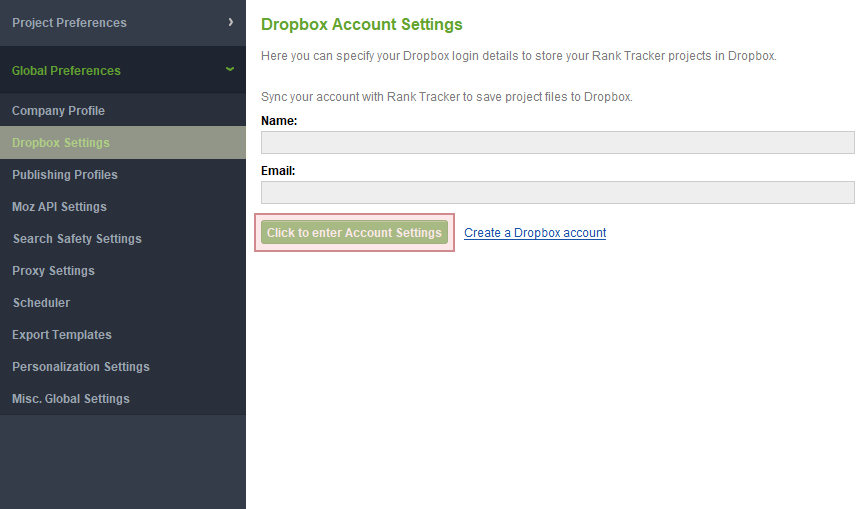
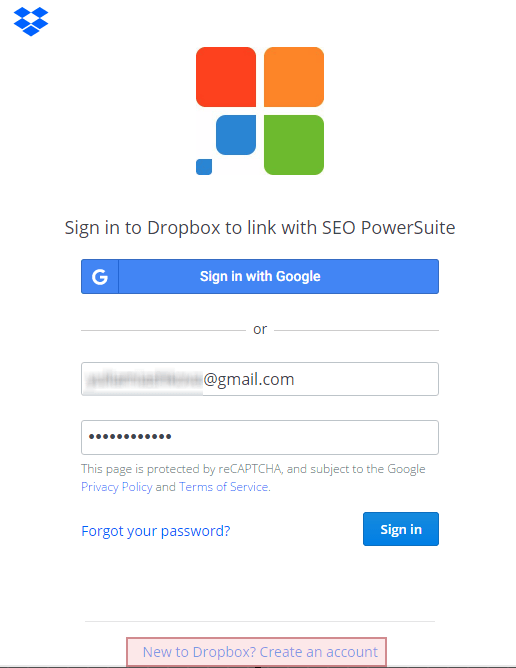
If you don't have an account in Dropbox, click to Create a Dropbox account. You'll be redirected to Dropbox's signup page. Once you've created an account, simply go back to your SEO PowerSuite app or BuzzBundle and proceed with the steps below.
- Specify the login details for your Dropbox account, and click Sign in.
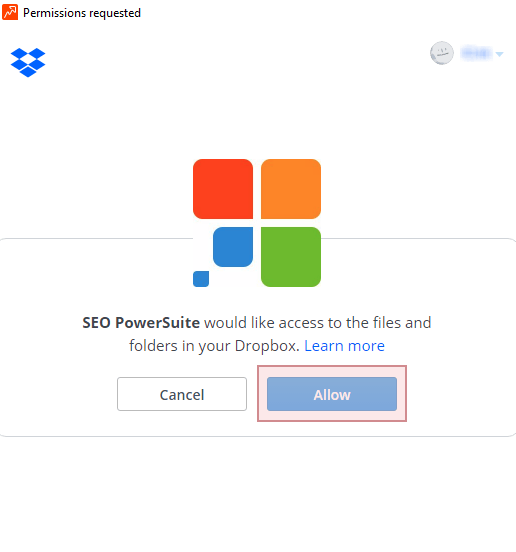
- Click Allow to sync your Dropbox account with the software.
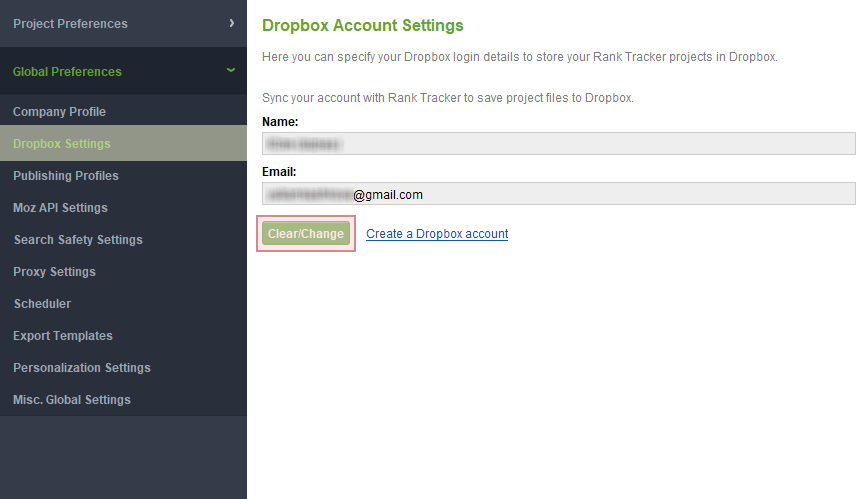
Done! If you use several SEO PowerSuite apps, repeat the steps above to link Dropbox to each of them.
Remove or Change your Dropbox account if needed from 'Preferences > Dropbox Settings'.
Storing projects in Dropbox
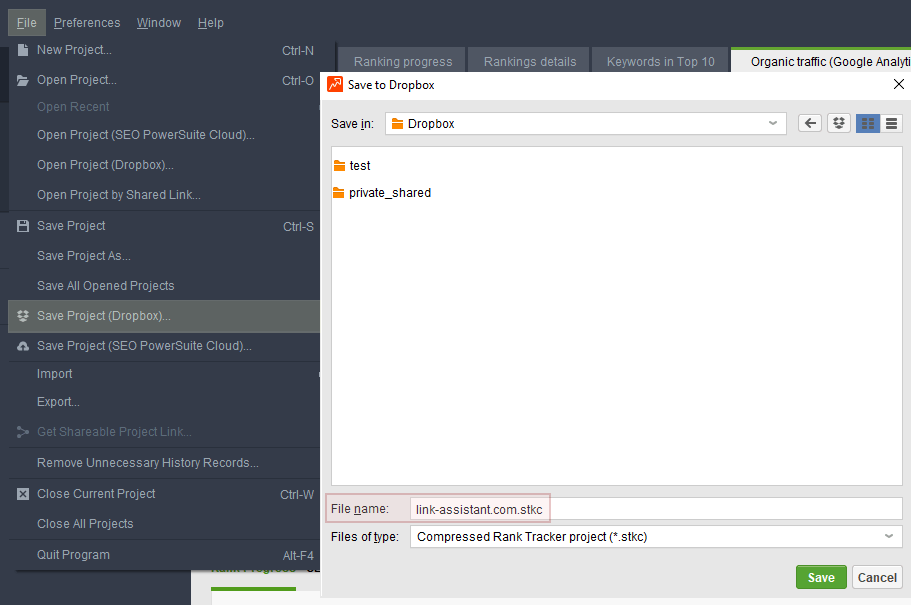
To save a project to Dropbox, open it in the app and go to 'File > Save Project (Dropbox)'. Specify a name for your project and hit Save.
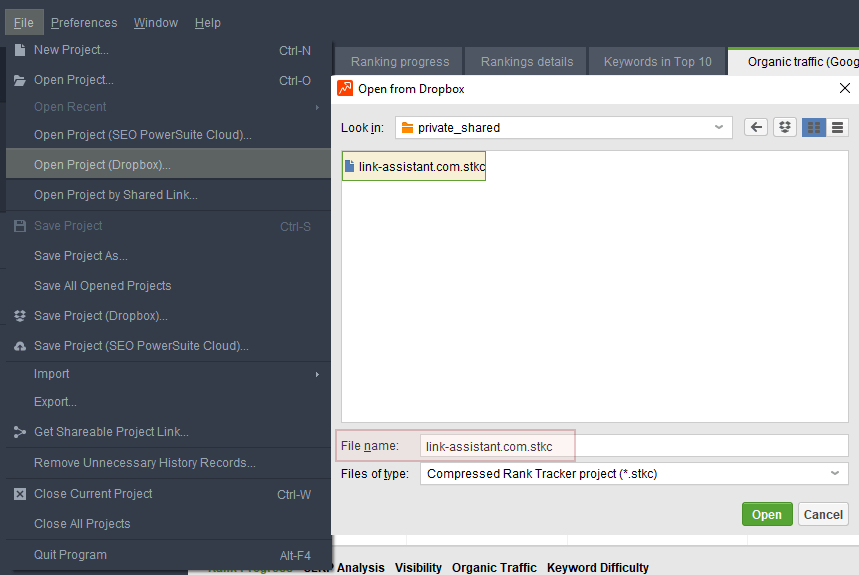
To open a project from your Dropbox storage, go to 'File > Open Project (Dropbox)', select a file from your account and hit Open.
Sharing projects stored online
Project files stored in both SEO PowerSuite Cloud and Dropbox can be easily shared with colleagues, management, or clients for review and collaboration.
To share a project, make sure it is saved to SEO PowerSuite Cloud or Dropbox, or follow the instructions above to save it online.
Then go to 'File > Get Shareable Project Link', and copy the Project Link to clipboard.
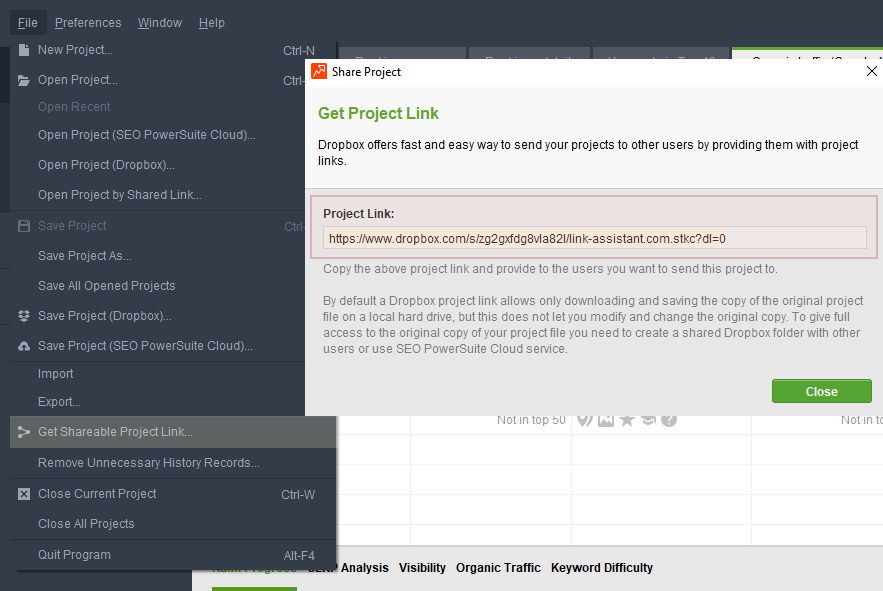
Then, simply share that link with other users.
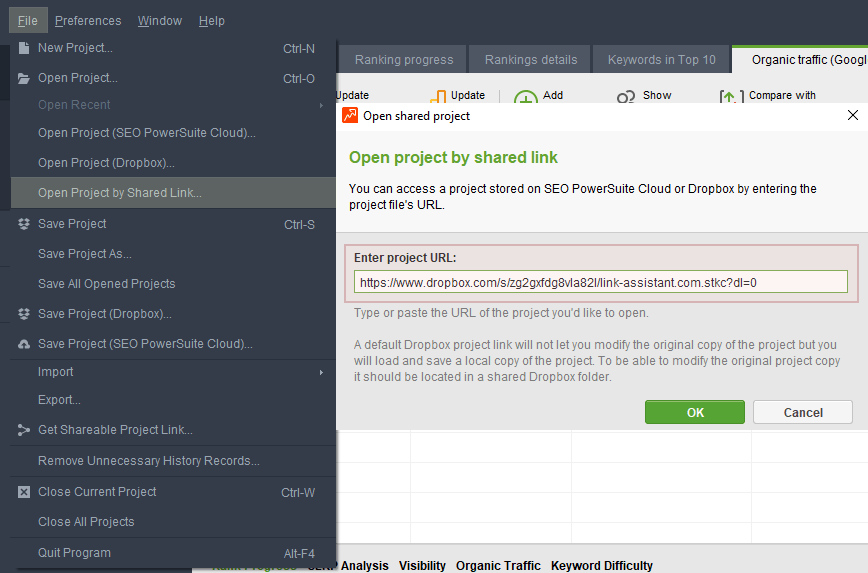
To open a project using a shared link, go to 'File > Open Project by Shared Link', paste your project link, and hit OK.
Note that if several users make changes to the same project and save them, the latest saved version of the file will overwrite all previous versions.